
The live photo wall. Included, no hardware to rent.
Turn on the live wall in the app, open its link on the laptop plugged into the venue screen, and your guests’ photos appear as they’re taken. No vendor, no booth, nothing to return the next day. Included starting with the 300-photo tier ($4.99).
Only the host needs the app, on iPhone. Your guests have nothing to install.


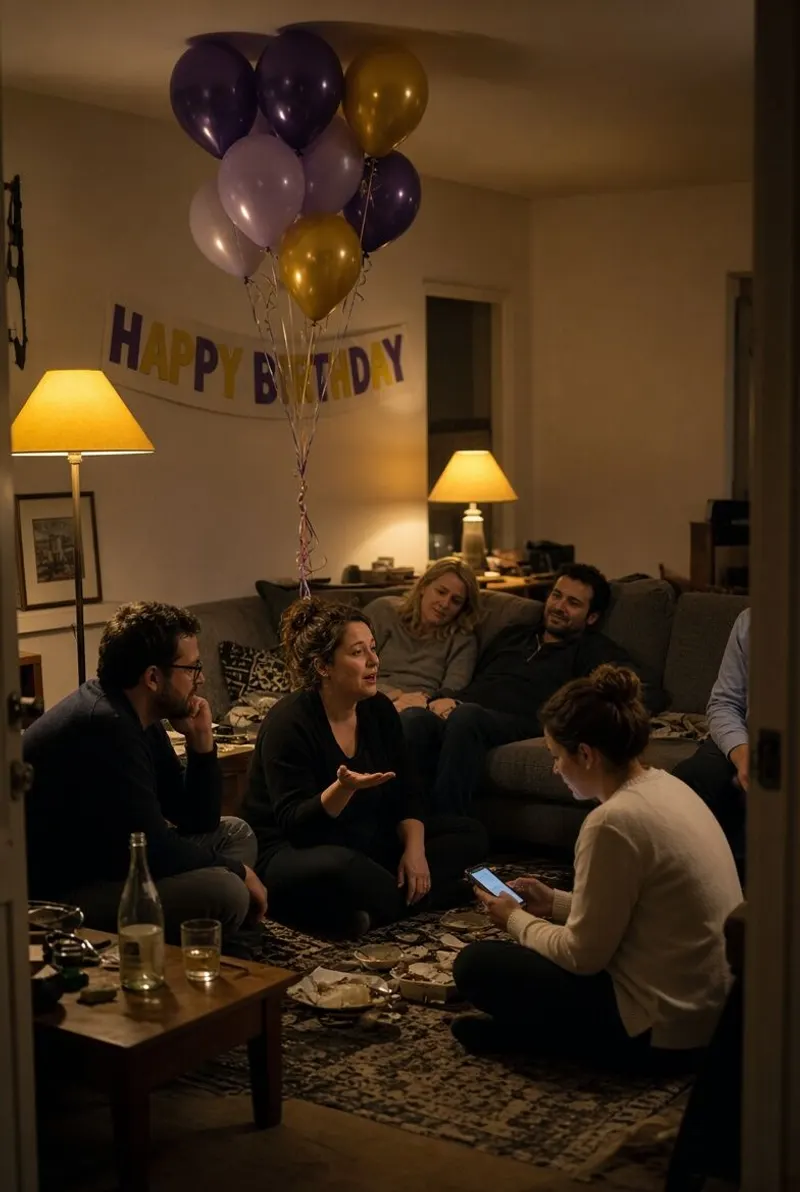
What the live photo wall is
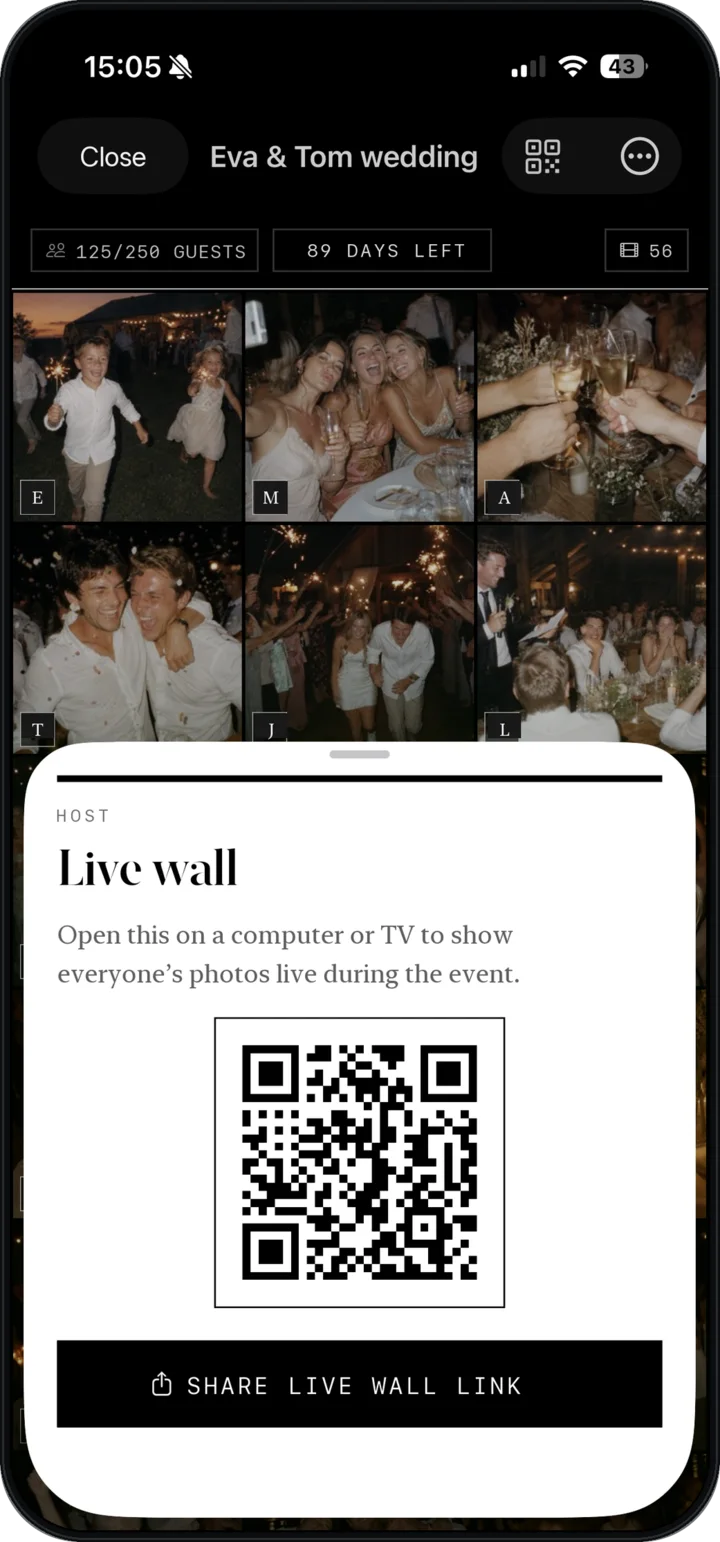
The live photo wall is a web page that shows the photos of your event as guests take them. The host turns it on from the WeWere app, gets a link, and opens that link in a browser on any computer or smart TV. A photo taken on a guest’s phone shows up on the screen moments later.
A rented photo wall or photo booth does the same thing with a booth, a technician and a line item in the budget. Here it’s a link. It’s included in WeWere starting with the 300-photo tier: $4.99 for 300 photos, $9.99 for 600, $14.99 for 1,000, $29.99 for 2,500, with unlimited guests every time. See pricing.
How to set it up
- In the app — open your event, turn on the live wall, then tap “Share live wall link” to send it to the computer (AirDrop, Messages, email).
- On the computer — open the link in Safari, Chrome or any browser. It also works in the browser of a smart TV.
- On the screen — plug the laptop into the venue screen or projector with an HDMI cable.
- Full screen — put the browser in full screen and let it run. The photos arrive on their own, all night.
When to launch it

Starting at cocktail hour. That’s when people arrive, take out their phones and look for something to do with them. The first photos appear, the first guests recognize themselves, and the rest follows.
During dinner, the wall behind the tables does the job of a slideshow that’s never finished: the photo of the speech arrives while the speech is still going. At a corporate event, put it in the room where people gather during breaks. The idea is the same every time: the screen everyone looks at between moments.
Practical tips
- Internet — the wall needs a connection in the room, Wi-Fi or a phone hotspot. Test it on site the day before, on the actual screen.
- Cable — bring your own HDMI cable and the adapter for your laptop. Venues rarely have the right one.
- Screen size — a TV is enough for a room of fifty. Beyond that, a projector or the venue’s big screen. Whatever the size: full screen, screen saver off, laptop plugged into an outlet.
- Someone in charge — one person — a groomsman, the DJ, a colleague — who knows where the laptop is and can reopen the link if it gets closed. Not the couple, not the boss.
What it does to the party
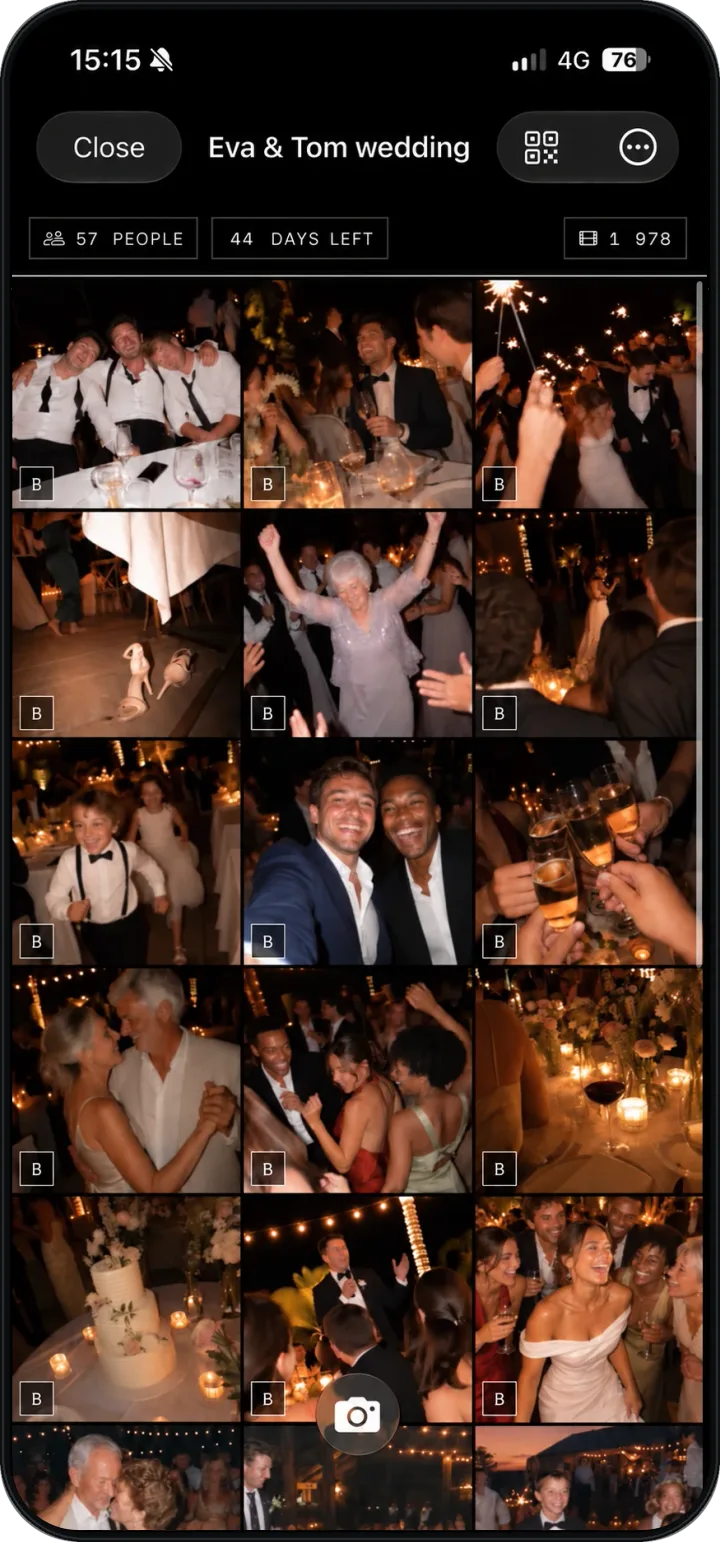
Guests see themselves on the wall, so they shoot. That’s the mirror effect: the back table notices the photo from the front table and joins in. Kids run over to check whether theirs made it. The album fills faster than with any reminder from the MC, and the photos are better, because people know they’ll be seen.
You stay in control. The host can remove a photo from the album at any time, from the app, and it disappears from the wall. Anyone can report a photo.
Where it works best
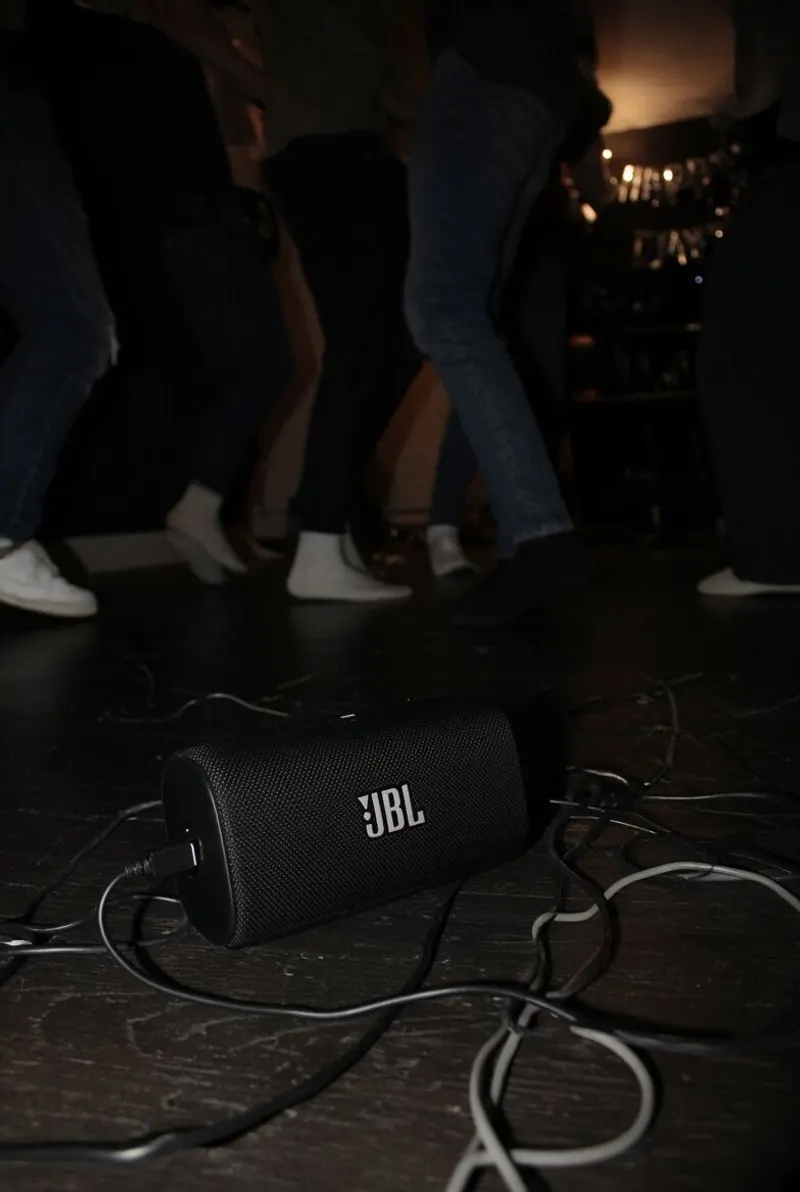
Any event with a screen and a room where people stay a while. Weddings first: the wall runs from cocktail hour until the last dance. Corporate events: the offsite dinner, the holiday party, the team day. Birthdays too, from the 300-photo tier up, with a TV in the room.
For the wedding setup in detail — cables, placement, timing — read the guide: how to project your wedding photos on a screen.
Frequently asked questions
Does the live wall need internet?
Yes. The wall pulls the photos from the album as they arrive, so the computer needs a connection in the room: the venue’s Wi-Fi or a phone hotspot. Guests need one too, 4G or Wi-Fi, to send their photos.
What screen format does it work with?
It’s a web page, so it fills whatever screen you open it on in full screen: a TV, a projector, a laptop. A standard 16:9 screen is the simplest setup.
Can I show it on several screens?
Yes. The link opens in any browser, so open it on one computer per screen, or mirror one laptop to several screens if the venue’s setup allows it.
Who can open the wall link?
Anyone who has it: the link is a key to the album. Give it only to the person running the screen, and don’t print it on the table cards. Guests need the event’s invitation QR code, not the wall’s.
What if a photo shouldn’t be on the wall?
The host removes it from the app, at any time, and it disappears from the album. Any guest can report a photo.

Turn on the live wall at my event.
Create the event in the app, turn on the wall, open the link on the venue screen. Your guests fill it.
Download on theApp StoreUnlimited guests. Free up to 40 photos