
How to project your guests’ photos on the venue screen
Projecting guest photos on the venue screen is what gets the back table shooting: they just saw themselves. It takes a laptop, a cable, a connection and one person keeping an eye on it. Here is the full list, and what to do if it cuts out.
Only the host needs the app, on iPhone. Your guests have nothing to install.
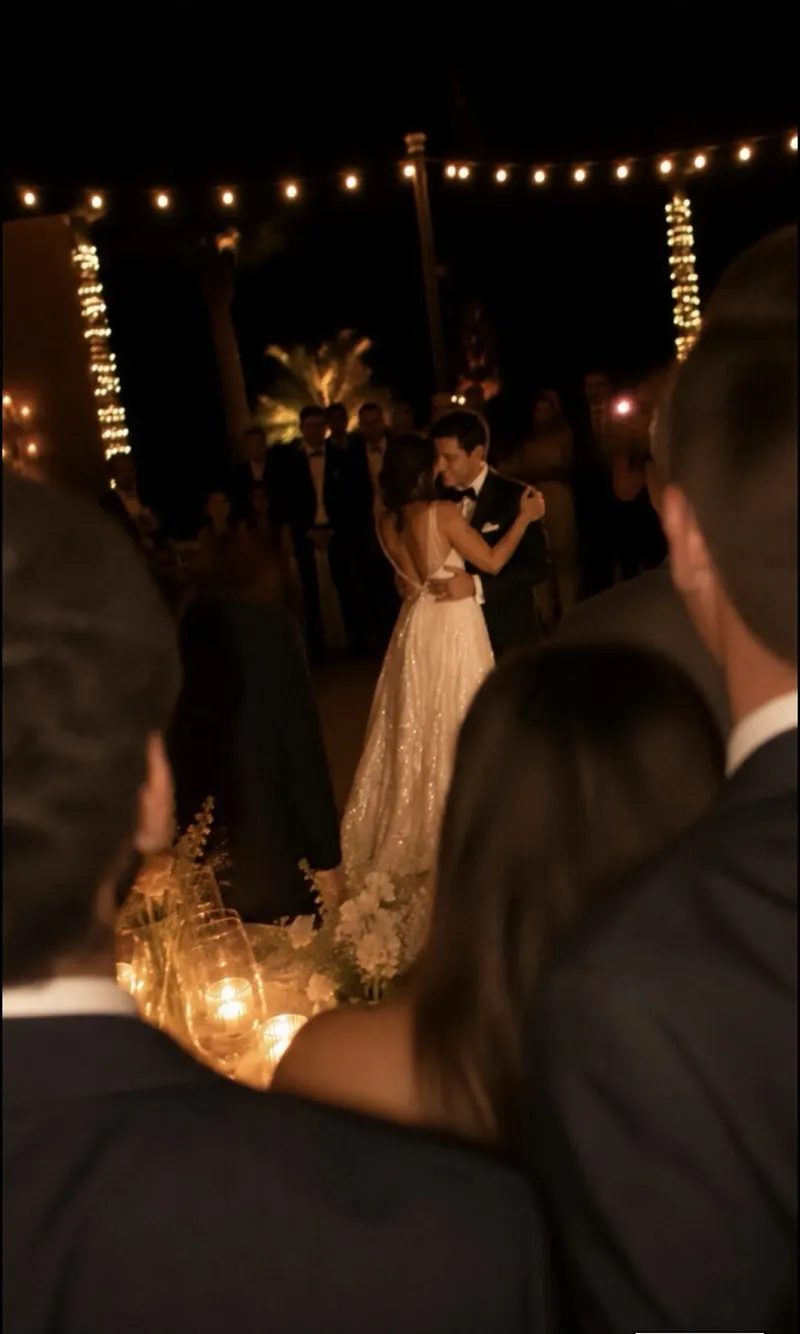
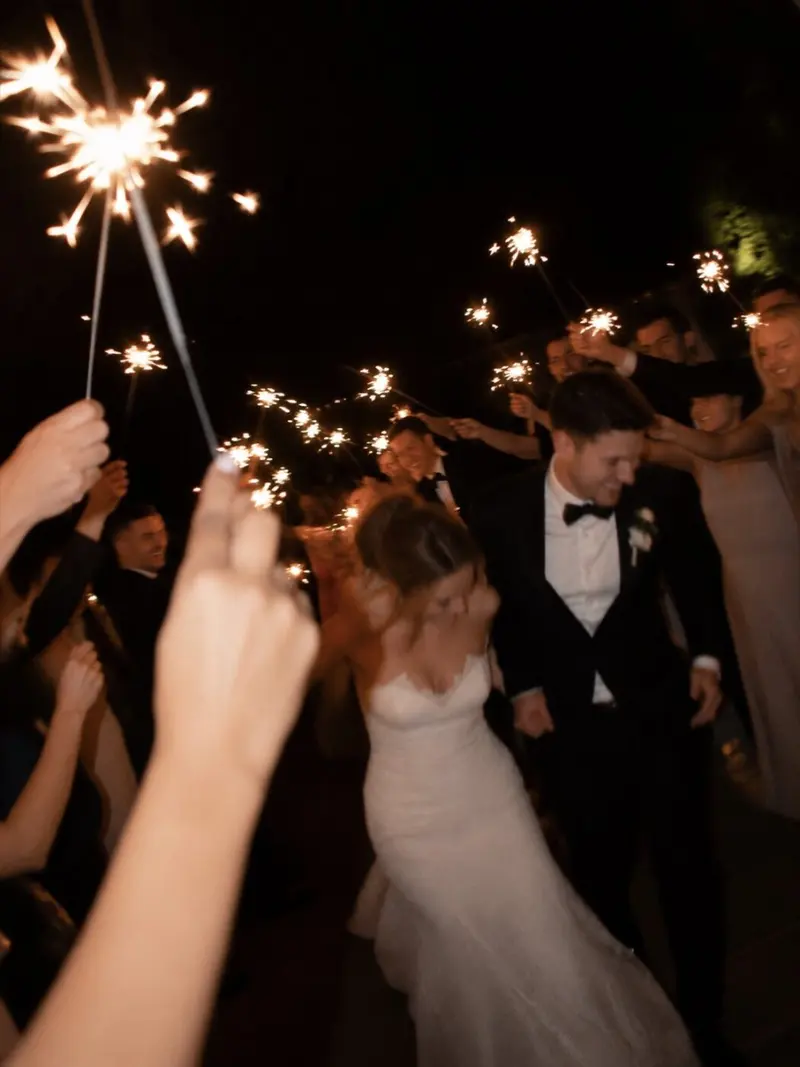
The gear: what to bring
- A laptop — any laptop with an up-to-date browser. Not a tablet: they go to sleep and handle a second screen badly.
- The venue screen — a smart TV, a projector or an LED wall. Ask the venue what they have, and which input — almost always HDMI.
- A 15 to 30 ft HDMI cable — the venue’s is often too short, or missing.
- A USB-C to HDMI adapter — Macs and most recent PCs have no HDMI port. Test it at home, not the day of.
- The charger and a power strip — the laptop stays on for eight hours. On battery it dies mid-dinner.
The network: venue Wi-Fi, and a plan B
The laptop has to stay connected all night.
- Venue Wi-Fi — ask for the password before the big day, and test it when you arrive. Beware of guest networks with a login page: they often drop you after an hour.
- A phone hotspot — your backup, on 4G or 5G. Check the signal inside the room, not in the parking lot. Keep the phone plugged in: a hotspot drains it in two hours.
- An Ethernet cable — if there’s a jack near the screen, the most stable option of all.
The settings: five minutes that prevent every problem
- Sleep off — in the laptop’s power settings: never sleep, no screen saver, display always on.
- Notifications off — Do Not Disturb mode, or a private message pops up in front of 120 people.
- Mirror the display — when you plug in the HDMI, choose mirror or duplicate. The venue screen shows the same thing as the laptop.
- Full screen — open the wall link shared from the WeWere app and go full screen (F11 on Windows, Ctrl + Cmd + F on Mac). No tabs, no address bar.
- Brightness up, sound off — on the TV and on the laptop. A projector in daylight is invisible: close the curtains or wait for the evening.
- Updates done the day before — a forced Windows restart at 10 p.m. is a classic.
The right moment: when to show, when to cut
The photo wall is a backdrop, not the show. It runs during the social parts of the evening and stops when someone speaks.
- Cocktail hour — yes, starting with the first photos. That’s when guests discover they’re on screen and start playing.
- Dinner — yes, between courses. It gives two tables who don’t know each other something to talk about.
- Speeches, surprise video, first dance — no. A photo scrolling behind a crying best man steals the moment. Turn off the screen or cut the signal, then turn it back on.
- Dance floor — yes, unless the screen sits right behind the DJ and competes with the lights.
Who watches it, and what to do if it cuts out
Not the couple. Name one person — a groomsman, a cousin who’s comfortable with a laptop — who has the Wi-Fi password and the wall link. Their job: a glance every half hour. If the screen goes black, in this order:
- The screen or projector — still on, on the right HDMI input? A remote left lying around can change the source.
- The cable — reseat both ends. HDMI plugs work loose when someone walks behind the table.
- Sleep — move the mouse. If the laptop went to sleep, go back to the power settings.
- The network — page no longer updating? Switch to the hotspot and reload.
- Full screen — a stray click exited full screen? F11, and you’re back.
If nothing works after five minutes, let it go. The photos keep landing in the album; the screen was only the store window.
With WeWere
On WeWere, the live wall is included at no extra cost from the 300-photo tier up (for a wedding: $14.99 for 1,000 photos, $29.99 for 2,500, one payment, unlimited guests). You turn it on from the iPhone app, which gives you a link. Open it in the browser on the laptop plugged into the screen, go full screen, done: your guests’ photos appear as they’re taken. Delete a photo from the app and it leaves the screen. The live photo wall in detail · See pricing · WeWere for weddings.
To get guests playing, see 12 photo game ideas.
Frequently asked questions
Do I need special software to project the photos?
No. An up-to-date browser is enough: the wall page opens like any website. Chrome, Safari or Edge.
Can I project straight to the TV, without a laptop?
Some smart TVs have a browser, but they go to sleep, handle full screen badly and update themselves. A laptop, even an old one, is more reliable.
What if the venue has no Wi-Fi?
A phone hotspot is enough, as long as there’s a signal inside the room. Test it during the venue walk-through, and keep the phone plugged in.
How long before the guests arrive should I set it up?
One hour. Enough to find the HDMI input, swap a cable or switch connections.

One screen, one cable, and your guests see themselves.
Download WeWere, create the event, turn on the live wall from the app. Included from the 300-photo tier up.
Download on theApp StoreUnlimited guests. Free up to 40 photos